
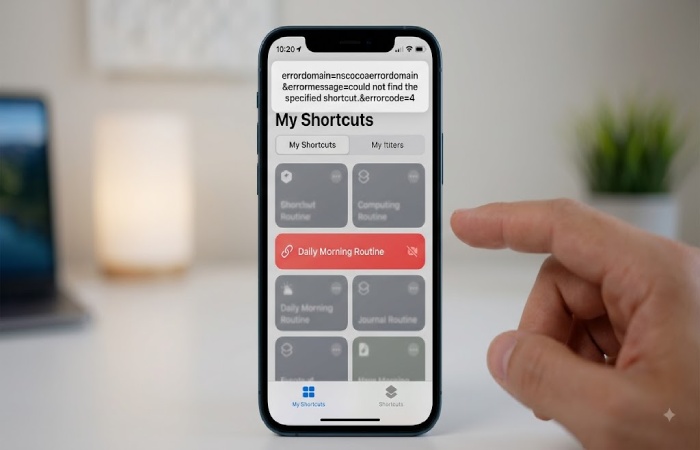
If your Apple device shows errordomain=nscocoaerrordomain&errormessage=could not find the specified shortcut.&errorcode=4, the message looks far more complicated than the underlying problem. In most cases, an Apple system component or app is trying to access a shortcut or file reference that is no longer available at the location it expects.
The important clue is Error Code 4. Apple documents NSCocoaErrorDomain as the Cocoa error domain, while its Foundation error codes include NSFileNoSuchFileError, describing a filesystem operation attempted on a file that does not exist.
Table of Contents
Key Takeaways
| Question | Short answer |
|---|---|
| What does the error mean? | A referenced shortcut or resource cannot be found |
| Is it usually dangerous? | No |
| Is the device broken? | Usually not |
| Most likely first check | Confirm that the shortcut still exists |
| Common Apple-specific cause | A broken or unavailable Shortcut reference |
| Can iCloud be involved? | Yes, especially when shortcuts are expected across devices |
| Should you reinstall iOS/macOS immediately? | No |
| Best approach | Identify what is calling the missing shortcut, then repair that reference |
What Does the Error Actually Mean?
The error has three useful parts:
- NSCocoaErrorDomain — identifies Apple’s Cocoa/Foundation error family.
- Could not find the specified shortcut — tells you what the failing operation was trying to locate.
- Error Code 4 — corresponds to a missing-file condition in Apple’s Cocoa error-code system. Apple describes NSFileNoSuchFileError as a filesystem operation attempted on a non-existent file.
So, in plain English:
Something asked Apple’s system to open or execute a shortcut/resource, but the expected object could not be found.
This distinction matters because many online troubleshooting guides incorrectly treat the message as proof of corrupted macOS or a damaged device. The error itself does not establish that conclusion.
You will have to open that component and repair or remove the dependency with the defunct shortcut. However, according to Apple, shortcuts are “a set of actions that can be used together to automate common tasks through your favorite apps and services.” If an automation or piece of iOS software was based on your favorite but now defunct shortcuts, it “may break” due to the inoperability.
Why Does This Error Appear?
It is not a single point of failure. The practical approach to solving the error is to find what changed JUST BEFORE the error occurs.

1. The Shortcut Was Deleted
This is the simplest explanation.
If an automation, widget, app integration, HomeKit workflow, or shared link expects a shortcut that was deleted, the system has nothing to open.
Check the Shortcuts app before changing any system settings.
If the shortcut is missing, recreating it may be enough.
2. The Shortcut Was Renamed or Recreated
A workflow may depend on a particular shortcut or identifier. If you deleted the original and created another shortcut with a similar name, the new shortcut is not necessarily equivalent to the old reference.
This is especially important for users who maintain several automations.
Practical rule: don’t assume that creating a new shortcut with the same visible name repairs every existing reference.
3. iCloud Synchronization Has Not Completed
Apple supports synchronization of shortcuts through iCloud. When iCloud Sync is enabled, changes to shortcuts can be reflected across signed-in Apple devices. Apple also notes an important limitation: personal automations do not sync to other devices.
This creates an easy troubleshooting trap.
Don’t expect to see exactly the same shortcut appear on other devices even if you can find one on one.
On iPhone or iPad, Apple says iCloud Sync for Shortcuts can be enabled under:
Settings → Shortcuts → iCloud Sync
On Mac, iCloud Sync is available through the Shortcuts app settings.
4. A Shared Shortcut Link Is No Longer Valid
Shared shortcuts can be distributed through an iCloud link or exported as a file. Apple documents both methods.
If somebody sends you an old shortcut link and the shortcut is no longer available, opening that reference may fail.
In that situation, repeatedly restarting your device will not necessarily solve anything. You need a valid shortcut or a new copy.
5. An App or Automation Is Calling a Missing Resource
The message does not have to originate from manually opening the Shortcuts app.
An application or automation may attempt to invoke a shortcut in the background.
This is why the most useful troubleshooting question is:
“What action produced the error?”
For example:
- Did it appear after tapping a shortcut?
- Did it appear when opening an app?
- Did an automation trigger it?
- Did it happen after an OS update?
- Did it happen after changing or deleting a shortcut?
- Did it happen when using a shared shortcut?
The answer can dramatically narrow the diagnosis.
6. An Update or Device Migration Exposed an Old Reference
Updates and device migrations can change the environment in which an automation runs.
However, an update should not automatically be blamed simply because the error appeared after one.
A better hypothesis is:
The update may have exposed an existing dependency or reference that is no longer valid.
That is a more useful troubleshooting model than assuming the operating system itself is corrupted.
How to Fix the Error on iPhone or iPad
Start with the least destructive solutions.
Step 1: Find the Shortcut
Open the Shortcuts app.
Search for the shortcut named in the workflow or identify the shortcut you were attempting to launch.
If it exists, open it and run it manually.
If it does not exist, the missing shortcut is likely the immediate cause.
Step 2: Check Your Shortcut Collection
Look under All Shortcuts rather than assuming the shortcut is in the folder or location where you remember putting it.
Apple provides tools for organizing, editing, duplicating, deleting, and syncing shortcuts.
If you find an older working version, consider duplicating it before making major changes. Apple supports duplicating shortcuts directly in the Shortcuts app.
Step 3: Check iCloud Sync
If you use multiple Apple devices, verify that Shortcuts synchronization is enabled.
On iPhone or iPad:
Settings → Shortcuts → iCloud Sync
Apple says iCloud can keep the shortcut collection synchronized across signed-in devices.
Give synchronization time to complete before deleting and rebuilding shortcuts.
Step 4: Restart the Device
A restart is worth trying after confirming that the shortcut actually exists.
It can clear a temporary application or system state, but it cannot recreate a shortcut that has genuinely been deleted.
That distinction is important: restart first, but don’t mistake restarting for repairing a broken reference.
Step 5: Recreate the Shortcut
If the original shortcut is genuinely missing and you cannot restore it, recreate it.
For complicated shortcuts, rebuilding from memory can be frustrating. If you have an exported shortcut file or a trusted shared copy, importing that version is generally preferable to manually reconstructing dozens of actions.
Apple supports exporting and sharing shortcuts as files.
How to Fix It on a Mac
The same underlying principle applies on macOS: determine what resource is missing before modifying system files.
Check the Shortcuts App
Open Shortcuts and search for the shortcut.
If it exists, run it manually.
If it fails when run directly, inspect the shortcut’s individual actions for dependencies on files, apps, folders, or services that may no longer exist.
And if it works manually but fails when launched through another application or automation, the problem may be the calling reference rather than the shortcut itself.
Check Whether the Referenced File Exists
If the shortcut uses a file, folder, script, or application, confirm that the referenced item still exists.
Apple’s Foundation documentation explicitly distinguishes filesystem errors from other Cocoa error categories and identifies missing-file operations within the file-error group.
Pay particular attention to:
- renamed files
- moved folders
- deleted applications
- disconnected external drives
- unavailable network locations
- changed iCloud Drive locations
Check iCloud Shortcut Synchronization
On Mac, Shortcuts provides an iCloud Sync setting in its preferences.
If the shortcut exists on your iPhone but not on your Mac, synchronization is one of the first things to investigate.
What If the Shortcut Is Present but Still Fails?
This is where basic troubleshooting ends and dependency troubleshooting begins.
A shortcut can exist while one of the resources it uses is missing.
For example:
Shortcut → Open File → File moved
or:
Automation → Run Shortcut → Shortcut renamed/deleted
or:
Shortcut → Open App → App removed
In these cases, the Shortcuts app itself may not be the real problem.
Open the shortcut and inspect its actions.
Look for actions involving:
- Files
- Folders
- Apps
- URLs
- Scripts
- Cloud storage
- External services
- Home accessories
- Other shortcuts
Run individual components where practical.
The goal is to identify which dependency disappeared.
Should You Reset or Reinstall Your Device?
Usually, no.
A missing shortcut does not justify immediately erasing an iPhone or reinstalling macOS.
That approach is particularly risky because it treats a narrow reference problem as a complete operating-system failure.
Apple’s backup-and-restore documentation shows that restoring a device is a substantial operation and can involve erasing an already configured device before restoring from an iCloud backup.
Therefore, restoration should be considered only after ordinary troubleshooting has failed and you have a reliable backup.
Avoid These Steps as Your First Response
Do not immediately:
- erase your iPhone
- reinstall macOS
- delete your entire Shortcuts library
- remove iCloud data
- run random Terminal commands
- delete system preference files
- install third-party “repair” software
These actions can introduce new problems without addressing the original missing reference.
Advanced Mac Troubleshooting
Developers and advanced Mac users can investigate the error more deeply.
The useful evidence is often contained in the complete NSError, particularly its userInfo dictionary.
Apple’s documentation notes that filesystem-related errors can expose the relevant path through NSFilePathErrorKey or a URL-related key.
If you have a complete console or application log, look for information such as:
- the failing path
- application name
- process name
- underlying error
- shortcut identifier
- URL
- timestamp
- NSFilePathErrorKey
This can reveal whether the missing resource is actually a shortcut or something else referenced by the shortcut.
For developers, this is considerably more useful than simply searching the error string and applying unrelated “Mac repair” commands.
A Simple Troubleshooting Decision Tree
| What you discover | Most sensible next action |
|---|---|
| Shortcut is missing | Restore or recreate it |
| Shortcut exists and runs manually | Investigate the automation/calling app |
| Shortcut exists but one action fails | Repair that action’s dependency |
| Shortcut exists on iPhone but not Mac | Check iCloud Sync |
| Shared shortcut link fails | Obtain a fresh link/file |
| Error started after moving a file | Restore the file path/reference |
| Error started after deleting an app | Reinstall the required app if appropriate |
| Only one automation fails | Troubleshoot that automation |
| Multiple unrelated shortcuts fail | Investigate synchronization or broader system issues |
| Nothing works after ordinary troubleshooting | Consider Apple Support or advanced diagnostics |
What This Error Does Not Automatically Mean
Several common claims about this error are too broad.
It Does Not Automatically Mean Your Device Is Damaged
A missing resource is fundamentally different from physical hardware failure.
It Does Not Automatically Mean Your Data Is Lost
If a shortcut cannot be found, that does not mean your photos, documents, or other personal files have disappeared.
The missing object may simply be the shortcut itself or a resource it references.
It Does Not Automatically Mean You Need a System Reset
Most cases should be investigated at the shortcut, automation, application, or synchronization level first.
It Does Not Prove iCloud Is Broken
iCloud synchronization can be involved, but it is only one possible explanation. Apple specifically documents how shortcut synchronization works and also notes that personal automations are not synchronized across devices.
How to Prevent the Problem
The best prevention strategy is not complicated.
Keep Important Shortcuts Backed Up
For important workflows, maintain an exported copy or another trusted way to reconstruct the shortcut.
Apple supports exporting shortcuts as files on both iPhone/iPad and Mac.
Avoid Unnecessary Renaming
If other workflows depend on a shortcut, changing its identity or rebuilding it from scratch can create unexpected dependencies.
Review Automations Periodically
Delete obsolete automations and verify that important ones still run.
Keep iCloud Synchronization Consistent
If you rely on the same shortcut collection across devices, ensure Shortcuts synchronization is configured consistently.
Remember that personal automations are an exception and do not automatically sync to other devices.
Keep an Export of Business-Critical Shortcuts
If a shortcut saves significant time every day, treat it like any other important workflow: keep a recoverable copy.
Frequently Asked Questions
What is NSCocoaErrorDomain?
NSCocoaErrorDomain is Apple’s Cocoa error domain used by Foundation and related frameworks. Apple’s documentation describes it as the error domain for Cocoa errors.
What does Error Code 4 mean?
In Apple’s Cocoa error-code system, NSFileNoSuchFileError represents a filesystem operation attempted on a file that does not exist.
In the shortcut-related message, that points toward a missing or unavailable shortcut/resource rather than automatically indicating hardware damage.
Can I fix the error without losing data?
In many cases, yes. Start by locating or recreating the missing shortcut and repairing its dependencies rather than resetting the device.
Does restarting fix it?
It can resolve temporary system or application states, but restarting cannot restore a genuinely deleted shortcut.
Why does my shortcut work on one Apple device but not another?
Check iCloud Sync and remember that Apple says personal automations do not sync to other devices.
Final Verdict
The key to fixing errordomain=nscocoaerrordomain&errormessage=could not find the specified shortcut.&errorcode=4 is to treat it as a missing-reference problem first, not as evidence that your Apple device needs a major repair.
Start by confirming that the shortcut exists. Then check its actions and dependencies, verify iCloud synchronization if multiple devices are involved, and recreate or restore the shortcut if necessary. Only move toward advanced diagnostics or device restoration when the simpler explanations have been eliminated. The most important troubleshooting principle is simple: find what Apple is trying to locate before trying to repair the entire system.